Loop Workspace
How to collaborate in real-time using Microsoft Loop.
Table of contents
What Is Microsoft Loop?
Microsoft Loop is a collaborative tool that lets you create workspaces and pages where board members can work together in real time. Think of it as a shared notebook that everyone can edit simultaneously.
Key concepts:
| Term | Description |
|---|---|
| Workspace | A shared space for a project or team (e.g., “CRC-SC Board”) |
| Page | A single document inside a workspace (e.g., “Feb 2026 Meeting Agenda”) |
| Component | A reusable piece of content (table, task list, checklist) that can be embedded in Teams, Outlook, and other M365 apps |
Accessing the Board Workspace
- Click the link above to open the Board workspace.
- Sign in with your CRC-SC guest account.
- You’ll see the workspace pages in the left sidebar — click any page to open and edit it.
Creating a New Page
- Open your workspace.
- Click + New page at the top or bottom of the page list.
- Give the page a title (e.g., “March 2026 Action Items”).
- Start typing — other board members with access will see changes in real time.
Using Loop Components
Loop components are interactive building blocks you can add to any page:
- Task list: Assign tasks to board members with due dates.
- Table: Organize information in rows and columns.
- Checklist: Track to-do items.
- Voting table: Collect quick votes or feedback.
To add a component:
- Type
/on a new line to open the component menu. - Select the type of component you want.
- Fill it in — it’s live and collaborative.
Sharing Loop Pages and Components
You can share Loop pages or individual components with other board members:
- Click the Share button at the top of a page, or hover over a component and click the share icon.
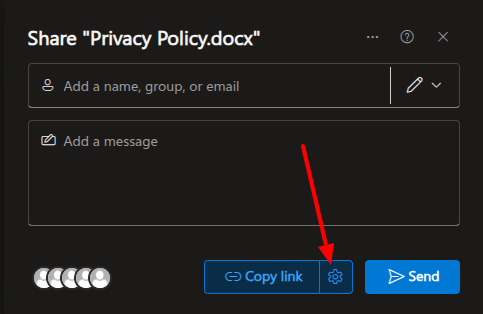 The Share dialog in SharePoint — click the link settings to change who can access the file.
- Important: Before sending, click the link settings and select “Only people with existing access”.
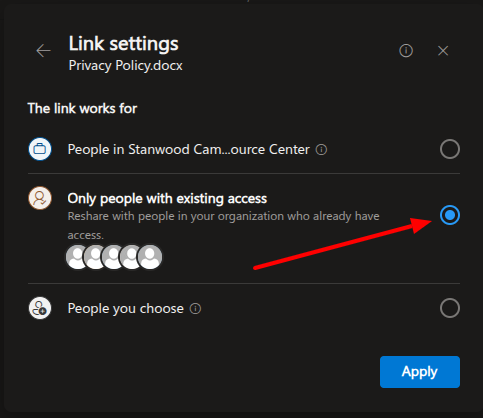 Make sure to select “Only people with existing access” to avoid sharing beyond the board.
- Copy the link or enter the recipient’s email and click Send.
- Loop components can be embedded in Teams messages and Outlook emails — and they stay in sync everywhere.
Always verify the sharing option is set to “Only people with existing access”. This ensures pages and components are not accidentally shared with people outside the board.
Tips for Board Use
- Meeting agendas: Create a Loop page for each meeting. Add a task list for action items.
- Decision tracking: Use a table component to log decisions, who made them, and when.
- Async collaboration: Board members in different time zones can contribute at their own pace.