Board Document Library
How to find, edit, and share board documents in SharePoint.
Table of contents
Accessing the Document Library
📂 Open the Board Document Library
- Click the link above or go to the Board of Directors SharePoint site.
- Click Documents in the left sidebar.
- You’ll see folders organized by category (e.g., Finances, Operations, Policies).
You can also access the document library directly from the Files tab in your Teams channel.
Finding Documents
Search
- Use the search bar at the top of the SharePoint site to find documents by name or content.
- You can filter results by date, author, or file type.
Browse by Folder
Common folders you’ll find:
| Folder | Contents |
|---|---|
| Finances | Budgets, treasurer reports, audits |
| Operations | Meeting minutes, committee reports |
| Policies | Bylaws, policies, and procedures |
| Archives | Documents prior to our M365 migration (pre-2026) |
| Meeting Agendas & Minutes | Now located in the Loop Workspace — see the Board Life section |
Editing Documents
- Click any document to open it in the browser (Word, Excel, or PowerPoint Online).
- Your changes are saved automatically.
- Multiple people can edit the same document at the same time.
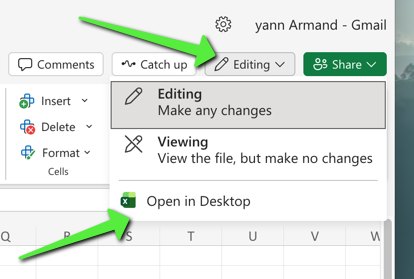
Edit Documents using desktop application
IF you prefer the convinience of using your laptop application to edit board documents, do the following:
- locate the document in the library using your web browser
- open it in the browser
- use the open in desktop button (see screenshot below)
- when you save the document from hte laptop application, it will automatically update the online version
- Warning: Do not Save As on the desktop application, this would create a local copy that is not synced with the cloud version.
Commenting on Documents
You can leave comments directly in Word, Excel, or PowerPoint Online without editing the document itself:
- Select the text or cell you want to comment on.
- Right-click and choose New comment (or click the Comment button in the toolbar).
- Type your comment and click Post.
- Other board members will see your comment and can reply or resolve it.
- Use @mentions (e.g.,
@Jane Smith) inside a comment to notify a specific person.
Comments are a great way to suggest changes or ask questions without modifying the document content.
Version History
SharePoint keeps a history of every change:
- Click the three dots (⋯) next to a file.
- Select Version history.
- You can view or restore any previous version.
Sharing Documents
To share a document link with another board member:
- Click the three dots (⋯) next to the file.
- Select Share.
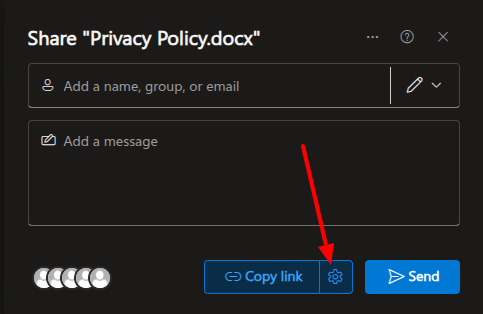 The Share dialog in SharePoint — click the link settings to change who can access the file.
- Important: Before sending, click the link settings (the gear or pencil icon next to the link) and select “Only people with existing access”.
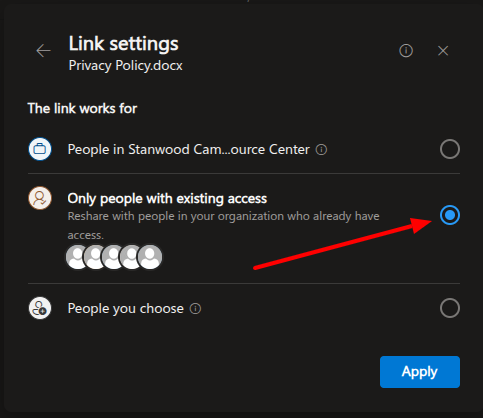 Make sure to select “Only people with existing access” to avoid sharing beyond the board.
- Copy the link or enter the recipient’s email and click Send.
Always verify the sharing option is set to “Only people with existing access”. This ensures documents are not accidentally shared with people outside the board.